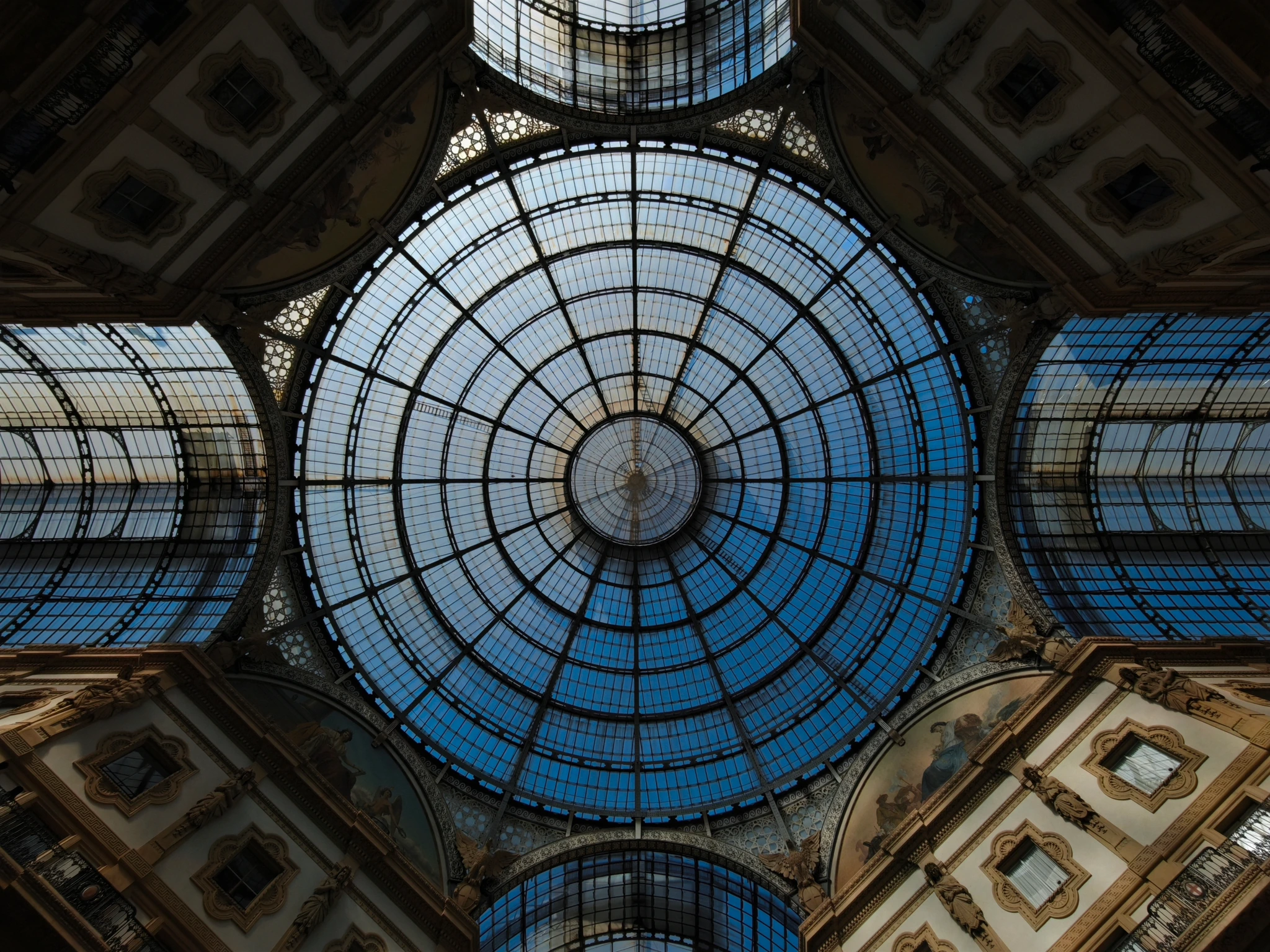

A place. Your perspective.
Let the map
lead to the photograph.
One camera position, many ways of seeing. Find the spot, consider the light, then add your own perspective.
- 01
Find where to stand
Explore your city and zoom in for more spots. See the camera position and the photographed subject separately.
- 02
Plan for the light
Check local sunrise, sunset, moonrise, moonset and the current light period, alongside available weather information.
- 03
Make it your own
Share photos at the same spot. Save works, places and photographers to build your own photography map.
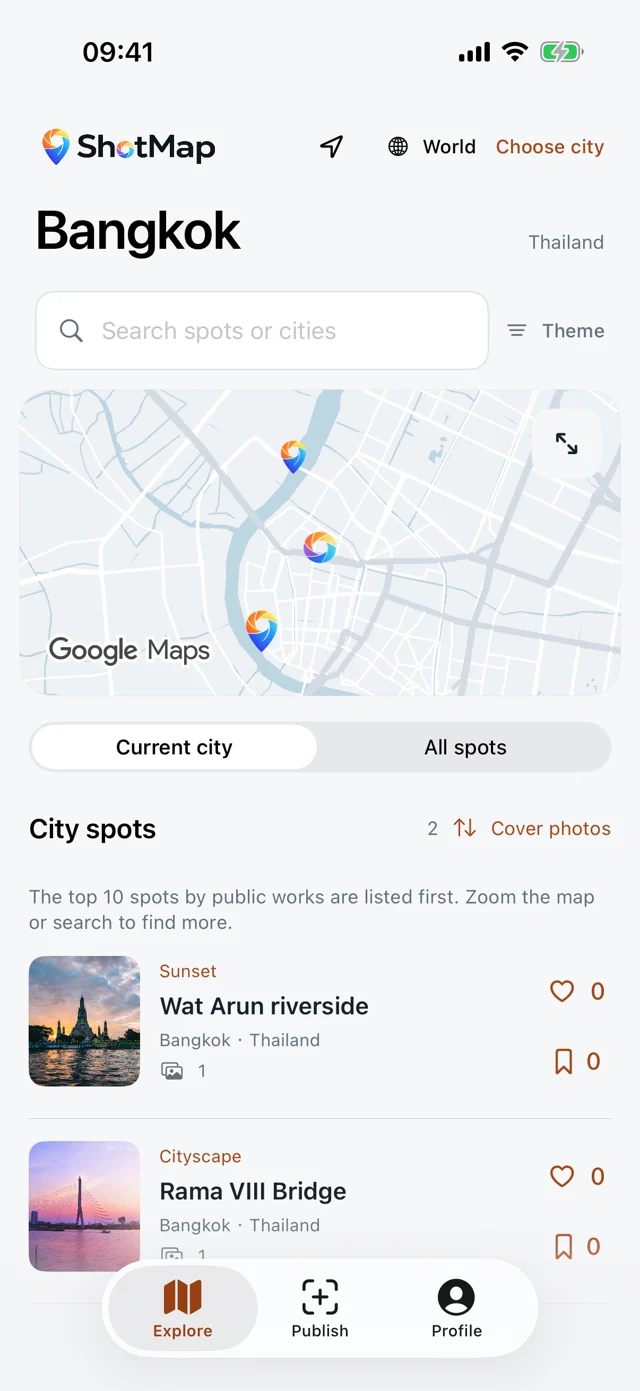
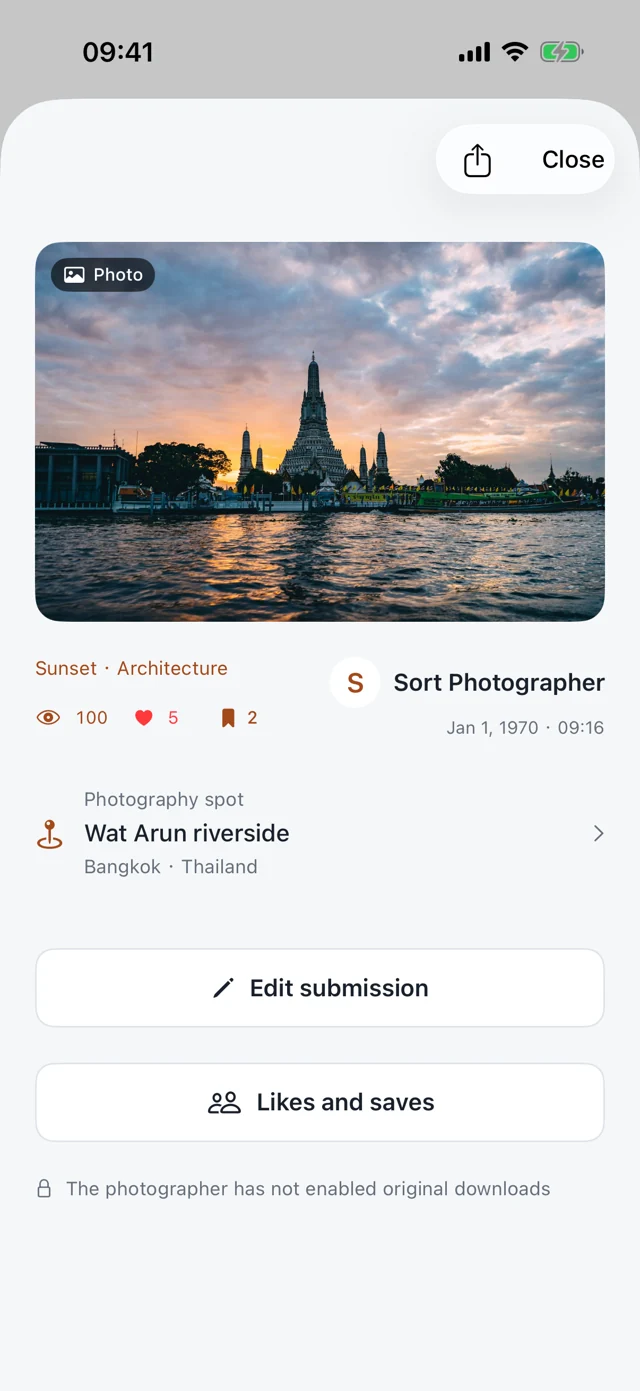
Current app screens · Example content
Bring your camera. Start here.
Three steps to your next shot.
- 01
Find
Explore the city map, photos and addresses. A place nobody has shared yet could be your next discovery.
- 02
Record
Contribute to an existing spot, or create one with at least one photograph taken there. Photo GPS can help you choose and confirm the position.
- 03
Share
A new spot and its first photo work are reviewed together. Once approved, your discovery can inspire the next photographer.
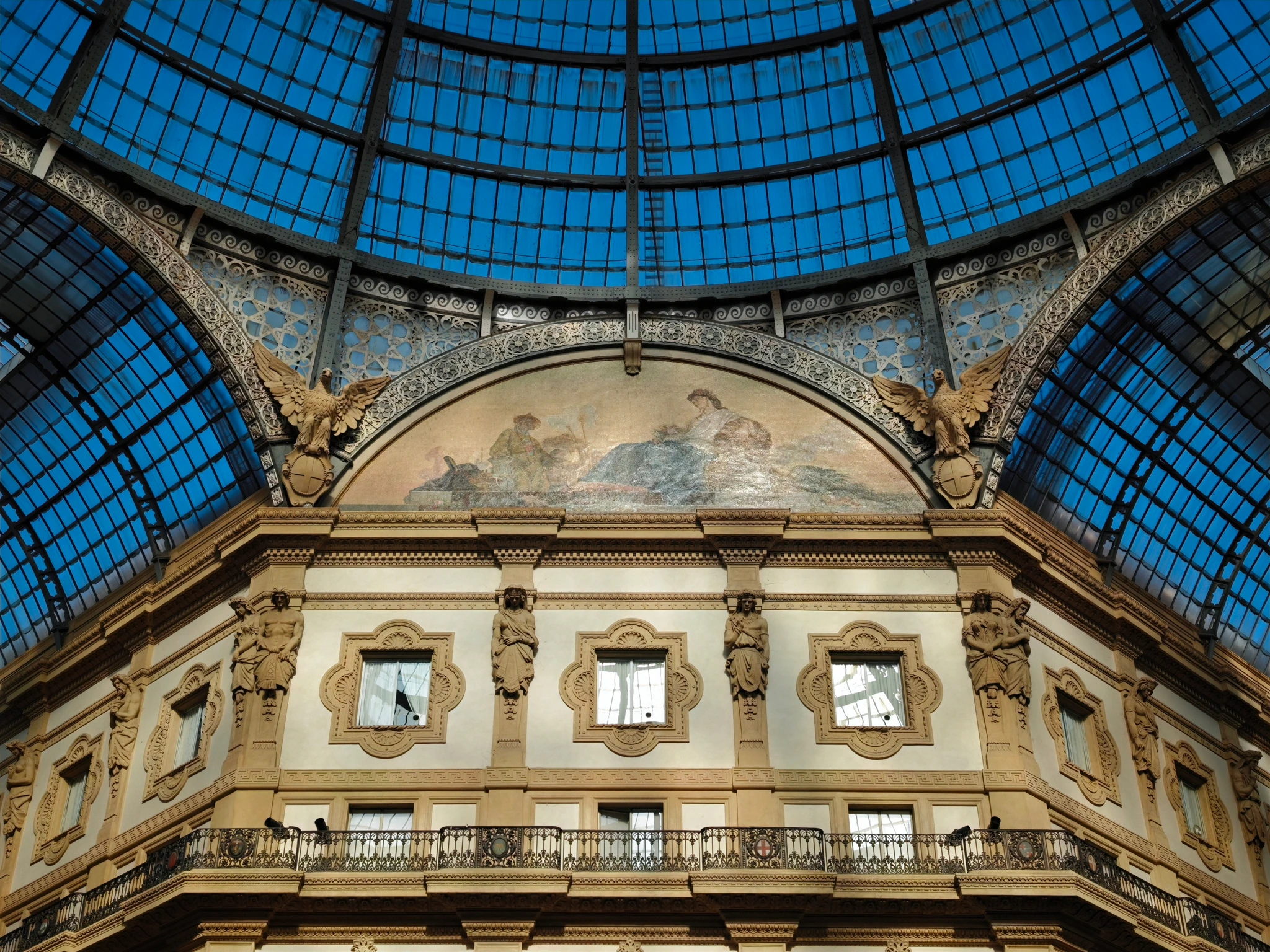
Architectural details · Photo Anthony Lau
Before you head out
A few things to know
Can I install it now?
Both versions are open for testing. Install the iPhone beta through TestFlight, or download the Android test APK from this website. Choose your platform for installation instructions.
What are the upload limits?
1–9 photos per work, up to 5MB each. Originals within the limit are not compressed. Resizing an upload copy requires consent and leaves the photo-library original unchanged. Originals are limited to 100MB and 20 works per UTC day. There is no cumulative account storage limit. New uploads may pause when server space is low, with an explanation.
What if saving or submission fails?
5MB is per photo, not the combined total. Check each capture date and oversized-file message. You can agree to resize an upload copy while keeping the photo-library original unchanged. Check the result; retry or replace only the affected photo if necessary. Failed submissions keep the local draft. Follow the message and retry from My submissions.
Are spots and works published immediately?
New spots require a first photo work and joint moderation. New works at existing spots also require administrator approval. Unpublished submissions are available only to their author and authorised administrators.
Which maps are used?
Automatic mode uses AMap in mainland China and Google Maps elsewhere, with manual switching available. ShotMap spots and works are shared across providers; browsing another city does not switch services. Availability depends on local networks and service permissions. AMap landmark search is currently awaiting service authorisation.
Does someone need the app to view a share?
No. Public works, spots and photographer profiles can be viewed on the web, with an option to open in ShotMap when installed. Original downloads follow the photographer’s preference.
Can I see sun, moon and weather information offline?
Sun and moon times are calculated on your phone using a confirmed spot time zone when available, or a labelled offline estimate that is checked online later. Weather keeps the last valid data for display for up to 48 hours, clearly marked as not refreshed. With no usable cache, retry when connected. App restarts keep this cache; you can clear it in Settings.
Apple · Google · Email
iPhone · Sign in with Apple or verified email. Accept the privacy policy and terms, then submit your avatar and nickname. You can explore and contribute after profile approval. On Android, sign in with Google or verified email. Email registration and password reset use a code valid for 10 minutes; check the junk folder if it is missing. No Google account is needed for email sign-in. To use one ShotMap account across platforms, open account connections, verify both identities and confirm the displayed account name and ID. Accounts that both already have content are kept separate and are not automatically merged. Your public profile username is optional, uses 3–30 English letters or numbers, and changes only after approval; your display nickname remains separate. 8–20 characters, including uppercase and lowercase letters, a number and a symbol (for example ~!@#¥%&*.). No spaces.
How do I set my profile URL?
In Edit profile, choose an optional unique profile username of 3–30 English letters or digits, without spaces or symbols. It is case-insensitive and becomes public after review at shotmap.app/username. Your display name and account ID stay unchanged. Earlier profile links continue to work.
How can I become a city manager?
Apply from Settings, choose a city and explain why you would like to help. The platform owner or a designated reviewer must approve the application before you can review new spots and photos in that city.
Automatic translation?
Published spot names, subjects, photo notes and biographies can be automatically translated by Google Translate through ShotMap servers. City and country labels use bundled multilingual names first. Translations may contain errors; refer to the original. Nicknames, user IDs and original content stay unchanged. Original text appears when translation is unavailable. Details: https://cloud.google.com/translate
How do I receive messages and update reminders?
On iPhone, enable phone notifications in Settings and choose task, interaction and version reminders. Android currently shows messages inside the app. Reviews waiting more than five days are referred to the platform owner.
How do I report copying, suspected AI or privacy issues?
Sign in to the app and use the content’s ellipsis menu. Open Reports and appeals in Messages or Settings to track the case and add explanations and source links. Each party may appeal once after a decision. Administrators review manually; missing EXIF alone is not proof. Web visitors can email the content link to support@shotmap.app. Ordinary administrators cannot resolve reports about their own content. Only the platform owner may directly close a report about their own location or work with a required reason shared with both parties and an audit record. Evidence and existing restrictions remain; the reporter retains the normal appeal right.
Profile approval
On first sign-in, set an avatar and username; manual approval is required before using the app. Later changes to your avatar, username, bio, location, Instagram and background (including crop and opacity) also require review. Approved information stays public while changes are pending. If returned, read the reason, edit and resubmit. The owner can combine permissions for photos and locations, profiles, reports and appeals, and operational status. Ordinary reviewers cannot review their own profiles. Only the owner can explicitly confirm a review of their own profile changes; the decision is recorded in the audit log. Approved accounts are not sent back to avatar and username setup when a list fails to load. Profile review labels the biography, location and Instagram fields and identifies empty fields. Established users can withdraw pending profile changes and keep the approved version. The management centre has separate Works awaiting review and Locations awaiting review lists, each with its own count. New locations enter review with their first photo work and are published together after approval. Unsubmitted local drafts are excluded. The lists paginate separately; opening one does not mark the other list as read. Only the owner can view the complete directory of avatars, usernames, short IDs and registration times in the management center, and assign or revoke multiple permissions for users who have passed initial profile review. Other administrators cannot access the full directory. Registration times are recorded by the server and are not public on profiles. Older accounts without an original record show “Not recorded”. Profiles may optionally include Instagram, a Rednote ID and a Rednote profile link, published after review. Blank fields stay hidden. A Rednote profile link opens the profile; an ID alone opens user search and may require installation or sign-in. External services process data under their own privacy policies.
Where do the login photos come from?
Each time the login page opens, it randomly selects a photo from approved, publicly visible user works and credits the uploader. The background uses a display copy, does not provide the original or add a work view, and never reads unpublished submissions. A built-in image appears if no eligible photo is available or loading fails. Withdrawn, hidden or restricted photos are excluded from new background requests.
How do I set the best shooting times?
When creating or editing a spot, select any combination of sunrise, morning, daytime, sunset, blue hour and night, without priority ordering. These creator recommendations are separate from work themes and live local sun, moon and weather information. New spot choices are reviewed with the first work. Existing spots show Not set until their creators add recommendations.
How do review test accounts work?
Public beta users can download from the public TestFlight link without a ShotMap invitation or verification code, then sign in with Apple and set their avatar and username. Initial profile approval is still required. The “Apple reviewer sign-in” entry is only for Apple reviewers with dedicated access codes. Review accounts have ordinary member permissions; new photos, spots and profile edits follow normal moderation.
How do I search for another city?
City search first uses a built-in directory of major cities and alternative names, without a network request. Check the country or region for cities with the same name. Unlisted cities need online lookup. Maps, landmarks and photography locations still need an internet connection after choosing a city. City and country names follow the current app language; choose Follow system to use the device language. Bundled multilingual names work without Google. Missing translations keep their source name or are supplemented online. Display language never changes city identity or coordinates.
Spot contributions
Add subjects, suitable times or shooting tips. Submit only new or different information for creator review. Review additions to your spots and track your own contributions here.
Do I need to add a photo when creating a spot?
Three steps: choose photos, confirm where you stood, then name the spot and subject. Topics, timing and notes are optional. Choose up to 9 photos you took here.
Spot directory
The latest 10 spots, from all photographers. Browse by country and city · Approved public spots from all photographers. Drafts and pending spots stay private.
World photo spots
Open World in Explore to see a pixel world map. Each city with at least one approved public spot has a ShotMap logo. Tap a logo to browse its spots. Zoom and pan keep logos anchored to their city positions. Cities refresh every 30 seconds while open without resetting your view. This overview is not a navigation map. See country and city coverage above the map. Use Share to save or share the world overview as an image. Zoom in to see city names. Nearby names are offset and move with the map.
Camera and subject positions
Camera position and subject position are separate. Search for the subject or tap its exact point and enter a name. A manually selected subject point is saved with the spot. Map-provider coordinates are used only with that provider and cached for up to 30 days; they may need refreshing. Older spots without a saved subject point depend on a successful provider lookup. If it fails, no subject pin is invented; the creator can edit and select the position again.
Advertisements and external websites
Advertisements may appear before a spot’s photos or below a photo’s shooting parameters. Swipe to change ads. Tap to view the full image and any description; choose Visit advertiser website to open your browser. Rotation pauses with Reduce Motion or when the app is inactive. ShotMap uses no third-party ad SDK or click reporting. External sites have their own privacy policies.
City pioneer badge
The creator of a city's first approved, published spot earns a badge. Its number on the profile counts pioneered cities; tap to browse paginated cities and their first spots. Drafts and unapproved spots do not count. Existing public spots are backfilled from available publication or creation records; unknown dates are not invented. Later contributions do not transfer an established first. Restricted spots or accounts are not publicly displayed. Account deletion removes personal associations.
Shooting notes
Approved shooting notes appear here. Preview 3 notes, open more for the full list, or tap a note to view its work.
Best shooting dates
Optional annual date range, e.g. 20 March–10 April. An earlier end date means next year. Light periods are selected separately. Conditions may vary.
Location feedback and corrections
New app features require 0.1.0 (72) or later. If TestFlight does not offer this build yet, please wait for the update. Choose Correct spot position in the spot details. Select the camera position or subject, mark the proposed point on the map and explain why. The creator reviews it before the location changes. After more than five days, the platform owner can also review it; decisions are recorded.
Spot milestones
New app features require 0.1.0 (72) or later. If TestFlight does not offer this build yet, please wait for the update. Spot medals count currently approved public contributions. Tap to see milestones and public spots. City pioneer recognition separately honours the creator of a city’s first published spot.
Search and editing
New app features require 0.1.0 (72) or later. If TestFlight does not offer this build yet, please wait for the update. Explore search accepts spot names, subjects, addresses and city names. A selected city sets the initial area; browse other cities on the full-screen map. Edit your own work by confirming withdrawal, then changing dates, spot, notes or topics and saving or resubmitting. After withdrawing a submission, remove or replace individual photos, keeping at least one. The first is the cover. Confirm each replacement’s capture date, then save or resubmit. A city search moves the Explore map. Place search lets you choose Google Maps or AMap; AMap requires privacy consent and depends on service permissions and connectivity.
Help shape ShotMap
Beta communities
Test the app, share feedback, and help build the map with your spots and photos.
WeChat beta community
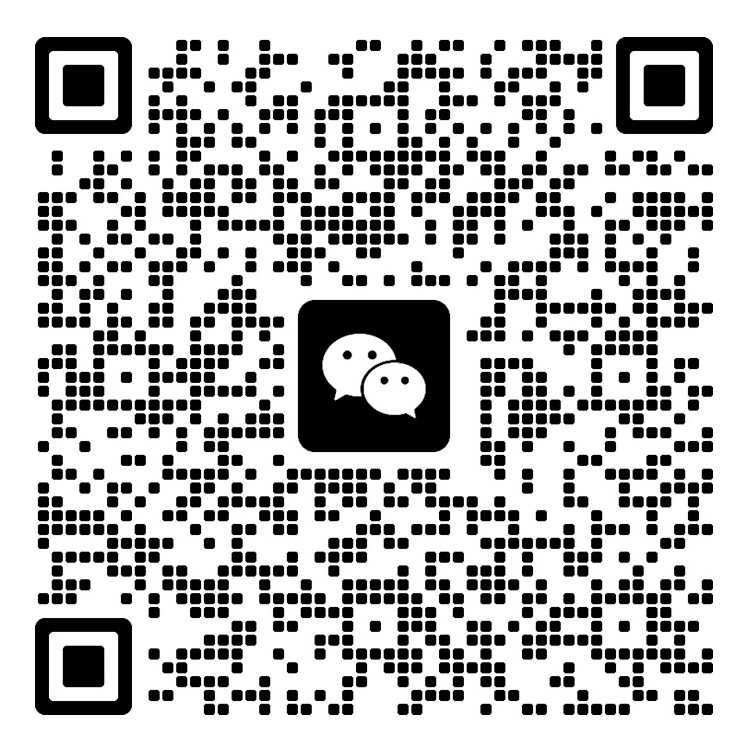
Scan with WeChat, or save the image and scan it from your photos in WeChat.
QR code valid through
Open full-size QR code ↗WhatsApp beta community

Scan with WhatsApp to join the beta group.
Open full-size QR code ↗ShotMap · iPhone / Android
A little inspiration.
A reason to head out.
Choose your phone. Help test ShotMap, add photography spots and share your photographs.